
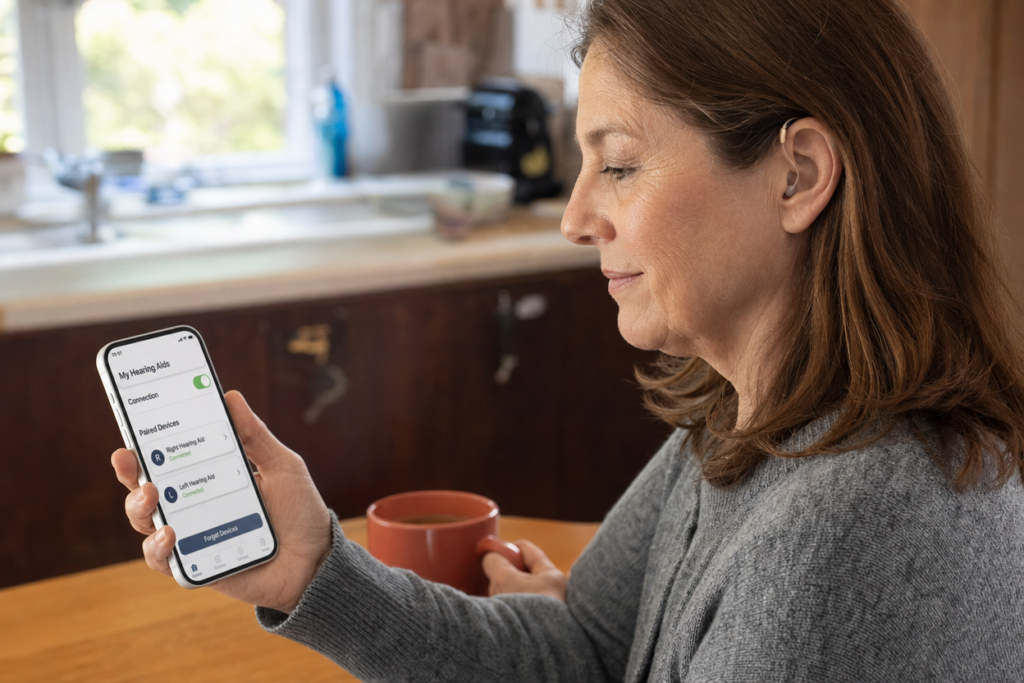
Last fall we fit a gentleman in his late 70s with a new pair of Phonak rechargeable aids. He’d been wearing devices for 15 years. He left the office with the new pair in his ears and his iPhone connected. About 20 minutes later he called us from the car. He was crying — happy tears. He’d taken a call from his daughter on the way home and heard her voice through both ears, clearly, for the first time since she was a teenager. “I forgot what she sounded like,” he told us. “I really had forgotten.”
Bluetooth on modern hearing aids is one of the biggest quality-of-life upgrades of the last decade. Phone calls go straight from your phone into both hearing aids — no holding a receiver up to your ear, no fumbling with a speaker. Music sounds clearer. TV streaming becomes possible. And almost every new device made since 2020 supports it.
But it’s still a smartphone, and smartphones do smartphone things. Here’s how to get the most out of it.
What “Bluetooth hearing aid” actually means
Almost every premium hearing aid sold today is Bluetooth-enabled. The specifics differ by manufacturer and model, but the broad story is the same.
iPhone users have had it longest. Apple introduced “Made for iPhone” (MFi) hearing aids in 2014. If your aids carry the MFi label and you have an iPhone running iOS 14 or newer, pairing is built into the phone — no extra app required to make calls and audio work.
Android users have it now too. Google added native Bluetooth hearing aid support through the ASHA protocol (Audio Streaming for Hearing Aids) in 2020. Most Android phones running Android 11 or newer can pair to ASHA-compatible hearing aids natively. Newer phones with the Bluetooth LE Audio standard (Android 13+) support an even better protocol called Auracast.
If you’re shopping for a phone and you wear hearing aids — any iPhone from the last six years works perfectly, and any current Samsung, Google Pixel, or modern Android works almost as well. The brand of phone matters less than it used to.
First-time pairing — step by step
Pairing is easier than people expect. The hard part is finding the right menu in your phone’s settings.
On iPhone:
- Open Settings → Accessibility → Hearing Devices.
- Take your hearing aids OUT of the charging case, turn them on, then put them back in for one second and take them out again. (This puts most devices in pairing mode.)
- Your phone should detect them and show your name and model. Tap to pair. You’ll see TWO confirmation pop-ups (one for each ear). Confirm both.
On Android:
- Open Settings → Connected Devices (or “Connections” on Samsung) → Pair New Device.
- Same hearing-aid step — out of the case, on, then quickly back into pairing mode.
- Tap your device name when it appears. Some Android devices will pair both ears in one step; some require pairing each ear separately.
If you’re stuck, every manufacturer also has its own app (Phonak myPhonak, Oticon Companion, ReSound Smart, Starkey My Starkey, etc.). Install the app for YOUR brand. The app will walk you through pairing with bigger buttons and clearer steps than the system settings.
If you can’t find the right app — call us. We’ll tell you exactly which one to download and which version of iOS or Android your phone needs to be on.
What you can do once paired
Once your hearing aids and phone are connected, you can:
- Take and make phone calls hands-free — voice goes directly to both ears, your phone’s microphone picks you up
- Listen to music, podcasts, and audiobooks streamed directly through your aids
- Hear FaceTime, WhatsApp, and other video calls clearly in both ears
- Use your phone’s built-in voice assistant (Siri, Google Assistant) more easily — questions and answers stream through your aids
- Adjust hearing aid programs and volume from the phone instead of fiddling with tiny device buttons
- Use the phone as a remote microphone — set it on the table at a restaurant or in front of a TV speaker, and it streams that sound to your aids
That last one is the most underused feature in all of modern hearing aid technology. If you’re in a loud restaurant and someone across the table is hard to hear — set your phone halfway between you and them, open your hearing aid app, and turn on “Live Listen” (iPhone) or the equivalent feature on Android. Their voice will stream to your aids like they’re standing next to you.
The most common problems and how to fix them
Pairing fails or the device “doesn’t show up.”
Restart your phone first — about a third of pairing problems solve themselves with a phone restart. If that doesn’t work, “forget” the hearing aids from your Bluetooth settings (in the same menu where you paired them), then start the pairing process from scratch.
The connection drops several times a day.
This is usually one of two things. Either Bluetooth interference from other devices in your home (Wi-Fi, microwaves, baby monitors — yes, really), or your phone is too far from your aids for a stable connection. Most aids work up to about 30 feet. Past that, the link gets unreliable. Keep your phone in a pocket or at the table when you’re streaming.
Phone calls sound great but music sounds tinny.
Your aids are likely in “phone call” mode by default, optimized for speech. Open your manufacturer’s app and switch to a “music” or “media streaming” program. The difference is significant.
Only one ear works.
In the Bluetooth settings, check that BOTH aids are paired (you should see two devices). If only one is showing, you’ll need to re-pair the missing side. The myPhonak/Oticon Companion/etc. apps make this easier than the system settings.
Battery drains faster when streaming.
This is normal — see our battery and charging best practices guide for what to expect.
What to do BEFORE you call us
Most Bluetooth problems are fixable from your couch. Before calling, try:
- Restart your phone (full power off, then back on)
- Turn Bluetooth off and back on in your phone settings
- Take your hearing aids out, put them in the charger for 30 seconds, then take them back out
- Re-open the manufacturer’s app
If all four of those don’t solve it — that’s the call to make. Bring the phone with you. Most “broken Bluetooth” issues we see are 10-minute fixes in the office because we know exactly which setting is buried where on each model.
A note on older phones and “I’m not into all this tech stuff”
If you don’t use a smartphone, or you don’t want to learn how to pair things, that’s completely fine. Your hearing aids work perfectly well without Bluetooth. Every premium hearing aid is still a hearing aid first and a Bluetooth device second.
But if you’ve been on the fence — if your kids or grandkids have been bugging you to “just try the phone connection” — we’re happy to set it up for you at any appointment. Bring the phone. Bring the patience. We’ll have you on a hands-free call with someone you love before you leave the office. We’ve watched a lot of patients cry happy tears on that first call. It’s one of the best parts of our week.
Come Experience Hearing for yourself
Whether you’re new to Bluetooth aids, you’re shopping for your first pair, or you’ve had them for a year and never made it past the pairing menu — come see us. We’ll get you set up, show you the features that matter, and walk you through it as slowly as you need. Read the full living-with-hearing-aids guide for the bigger picture.
Come Experience Hearing for yourself — call (828) 274-6913 to schedule at our Asheville or Hendersonville office. Bring your phone. We’ll handle the rest.